

- Case study, WordPress development
- 4 min read
How We Customized the Artday WordPress Theme for the Qtex Brand
Discover how we customized the ArtDay WordPress theme for Qtex, creating a branded website with enhanced functionality and user experience.
WordPress websites can be improved with plugin cleanup, caching, hosting upgrades, and media optimization. If performance problems stay, the root cause is often technical debt or architectural issues.

TL;DR
WordPress websites can be improved with plugin cleanup, caching, hosting upgrades, and media optimization. If performance problems stay, the root cause is often technical debt or architectural issues.
Best for: Agencies deciding whether a slow WordPress site needs optimization, technical cleanup, or architectural rework.
Slow website speed affects many aspects of website operation. Marketing and digital agencies should view poor performance as a potential launch risk and conversion problem. It also causes SEO issues and generally upsets clients who experience all the consequences. The challenges are that many WordPress performance problems seem easy to fix, while the actual issues are much more complicated. Slow speed may be a symptom of a heavy plugin stack, weak hosting, or years of site bloat.
Sometimes, caching optimization, lighter media, or plugin cleanup can help. However, there are also websites that require extensive rework.
This article explains the main reasons behind slow WordPress websites, what agencies should pay attention to, and when a deeper cleanup is essential.
Users tend to stay on a website longer if the site speed is fast. It’s also a ranking factor that directly affects your SEO results. Without proper optimization, your website won’t reach the top of Google. Another reason to care about speed is the potential impact on user experience. When pages take longer to load, and mobile browsing feels inconvenient, users are more likely to leave the site. The result is lower conversions and revenue.
For agencies, speed issues also mean riskier launch outcomes. During the website launch, traffic volumes spike, and a poorly designed website may fail to withstand the load. It causes page timeouts and other disruptions that make users leave and may turn a new project into a failure.
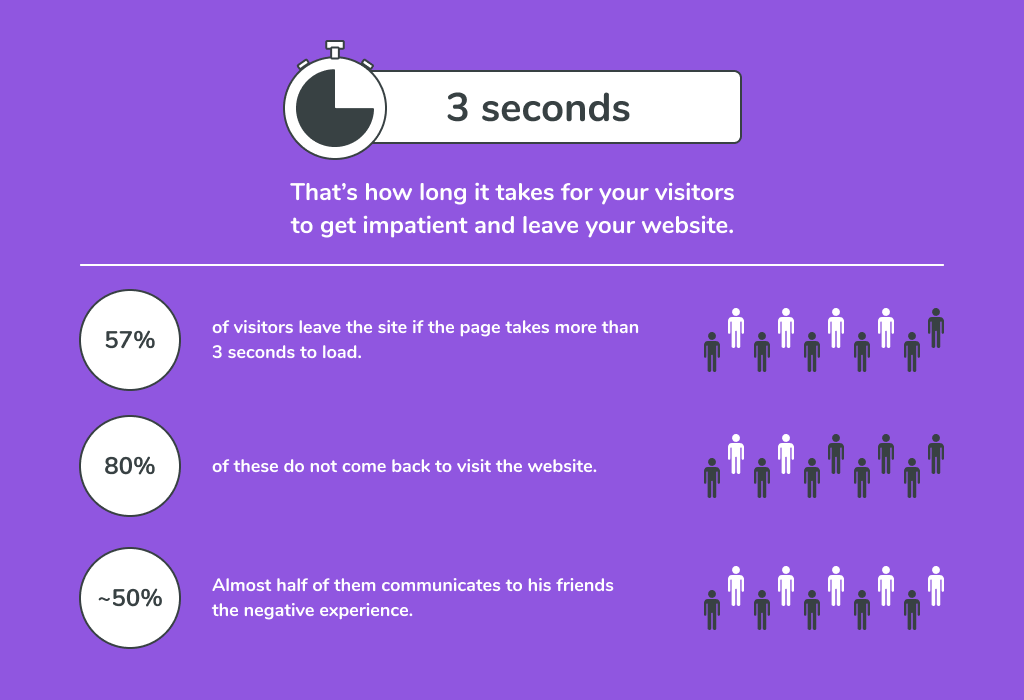
In practice, slow WordPress sites accumulate many problems that affect their speed. Performance degrades because of multiple small inefficiencies building up. If you wonder why a website is not working properly, here are the most common problems to look for:
When several of these factors come together, the cumulative effect may considerably undermine website performance. In this case, the task of an agency is to run an audit and figure out the nature of the problems.
Testing is the first step to take before any performance optimization changes. You can use one of WordPress’s free plugins available on its official page. There are also paid tools for more in-depth analysis and getting practical suggestions on how to improve the performance. Some of the options include Google’s PageSpeed Insights, Speed Booster Pack, and WebPageTest.org.
When testing your website speed, make sure to compare the homepage, key landing pages, and templates to get the full picture. It’s also better to avoid relying on one score, as it may be misleading. At GetDevDone, we recommend using multiple tools and comparing the results to detect recurring patterns, not just a single green/red result.
Performance slowdown often happens because of the accumulation of plugins, outdated add-ons, and abandoned functionality. Bloated themes also create excessive load.
Try to make it a habit to do plugin updates regularly, ideally every month or so. Set aside a day and time when you don’t have a lot of active users on the website – say, Friday night – and make sure you update all plugins and then briefly test your website after that. And as usual, don’t forget to create a backup of your website before doing any updates (including WordPress and PHP version updates).
Keeping plugins up-to-date is vital if you want your website to perform better. However, some developers do not release updates for years, and sometimes, it’s better to get rid of those plugins before it’s too late.
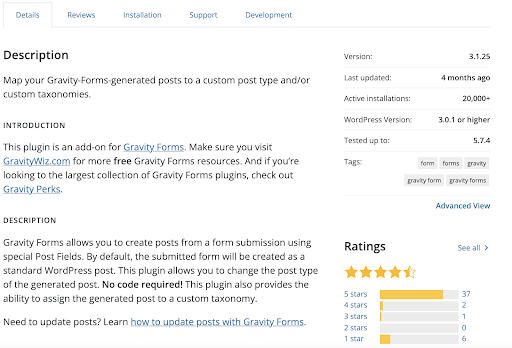
You can find thousands of abandoned plugins on a WordPress marketplace, and all of them can be replaced with modern alternatives. It’s easy to tell when the plugin is not maintained – just look at their page on the WordPress.org website. On the right, you’ll see all the important information, specifically when the plugin was last updated and tested.
Yet you should also remember that updating plugins doesn’t always help. If problems persist after the update, the real issue is not just old code. Most likely, you have too many plugins and the practical question is “Do we really need all of these plugins and how do they affect performance?”
A weak hosting service influences the website’s performance, even if everything else is optimized. When the server or plan cannot handle the site’s traffic or plugin load, fixing the front-end won’t help much.
That’s why agencies should check hosting when basic optimization is not enough to improve website performance.
Caching makes your website run faster by reducing the load on your WordPress hosting server. It’s often one of the quickest ways to optimize WordPress performance. However, caching may not be able to solve deeper underlying problems like a bloated plugin stack, oversized assets, or a weak hosting environment. So, if after implementing caching, the website remains too slow, you need to review the underlying build.
Good news – you don’t have to be a developer to set up proper caching on your WordPress website. These or similar plugins will do all the work for you:
Using a CDN (Content Delivery Network) will complement your WordPress caching plugin for even better website performance. You can use Sucuri, Bunny CDN, Cloudflare, or some other popular CDN provider to speed up loading times for all your visitors from different countries.
High-quality images, direct video hosting, and uncompressed media take up a lot of space and slow down WordPress pages. It’s a particularly common issue on marketing sites that have large volumes of content with insufficient optimization.
When agencies come across such websites, they should be able to differentiate between occasional and recurring asset problems. Repetitive issues point to weak content-side governance and require optimizing a content management approach.
Website managers need standards for creating and managing digital content. In particular, there are many image and video compression WordPress tools to optimize content before posting.

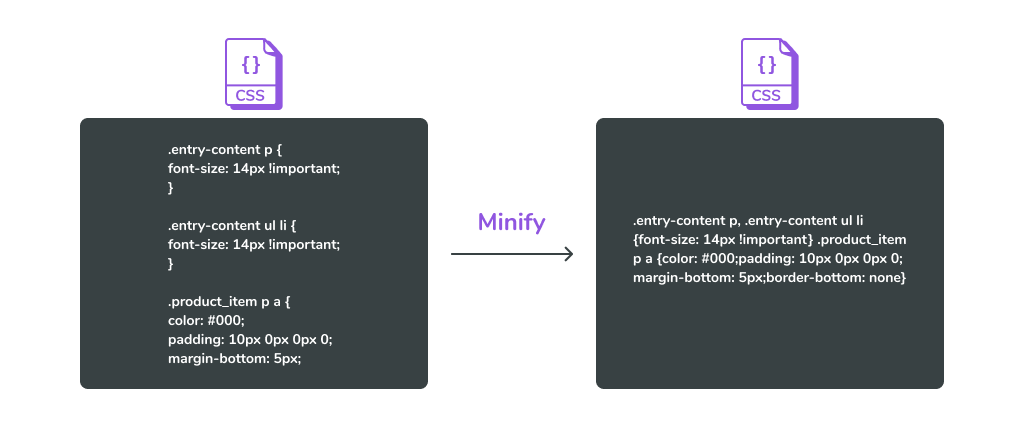
Minification means reducing your HTML, CSS, and JavaScript files’ size. The smaller the file, the easier and quicker it becomes for your website to load pages. Minifying removes unnecessary spaces, lines, and characters from the files, making files almost unreadable for humans.
While your website won’t be able to tell the difference, your users will certainly notice an improvement in your website’s speed. Again, you can use a good WordPress plugin for that. Some of the most popular minifying plugins are WP Super Minify, Autoptimize, and W3 Total Cache, which I mentioned earlier.
Note that although minifying CSS, JavaScript, and HTML helps reduce page weight, it’s only a part of a broader optimization strategy. That’s why you will need to use it along with other WordPress optimization measures.
Older WordPress sites often accumulate images, oversized media, and long archives. The impact of unused content is not catastrophic, but it can slowly affect website performance and efficiency.
Therefore, when agencies come across content and database bloat, they should both remove unnecessary content and establish cleaner content management practices.
By default, WordPress displays full pages and loads them all, which can quickly become a problem if you post a lot of content. To fix it, go to Settings » Reading, and select “For each article in a feed, show: Summary” instead of “Full Text.”
One last tip: if your posts frequently get a lot of comments, go to Settings » Discussion and check the box next to the “Break comments into pages” option. This way, it will be easier for your website to load them.
WordPress issues like caching, image compression, and plugin cleanup are relatively easy to fix, and an agency doesn’t need specialized engineering expertise for that. However, if quick changes don’t help and the website remains slow, the issue usually runs deeper.
The website may have considerable technical debt in the plugin stack, hosting setup, themes, or overall architecture, which undermines its performance. In these cases, fixing the slow speed with plugins cannot solve the real problem. Website owners need a structured performance cleanup to detect what should be removed or rebuilt.
WordPress performance optimization usually starts with surface-level fixes. In some cases, it helps, but more often than not, websites need a profound change. When too many plugins overlap, the hosting is weak, or content bloat starts piling up, speed issues reveal broader maintenance problems.
For agencies, understanding the real reason behind slow performance is key to adopting the right website optimization strategy. While some websites need better caching and media optimization, others require a deeper cleanup or structural change before running marketing campaigns or redesign.
An initial audit helps reveal the nature of performance issues and decide whether a quick fix or engineering rework can help.
The website speed optimization methods covered in this post can improve WordPress performance significantly and are possible to implement in-house. For teams that need deeper optimization, GetDevDone supports WordPress delivery across performance tuning, custom theme development, legacy theme optimization, and security hardening. With 20+ years of WordPress engineering experience and thousands of completed projects, the focus stays on stable, production-ready delivery rather than temporary fixes.
A WordPress site usually slows down because of a combination of factors. The most common reasons for declining website performance are plugin overload, weak hosting, and oversized media. Performance may also be affected by bloated themes or page builders. The right strategy to understand what causes performance issues is to look for patterns rather than focus on a specific technical fix.
Sometimes yes. The ease of fixing a website depends on the reasons behind declining performance. In many cases, performance improves significantly after optimizing caching, removing unnecessary plugins, and using stronger hosting. However, if the slowdown is caused by years of accumulated technical debt, only structural changes can fix it.
An agency should escalate performance work when basic fixes don’t help speed up the websites or when making updates and adding plugins result in additional performance issues. These are the signs that the problems lie in infrastructure inefficiencies, and engineering expertise is required.
Usually, no. Caching is an important step to fix WordPress speed, but it’s not enough by itself. Caching minimizes repetitive computations and improves page serving, but it cannot remove heavy assets, fix weak hosting, or optimize plugin bloat. Therefore, caching is only one of the steps in a broader speed optimization strategy.
Right after the WordPress website development stage and before its launch, agencies should check hosting quality, plugin overlap, theme or page-builder weight, caching, compliance with Core Web Vitals targets, and template rendering on mobile and desktop devices. These checks are focused on the main vulnerabilities and help detect performance issues before they turn into a major SEO and conversion problem after release.
Performance plugins contribute to website slowdown in case of plugin stacking or misconfigurations. They also aggravate the situation when used to compensate for deeper site issues that require cleanup. Therefore, before installing performance plugins, website owners or agencies should determine the actual cause of performance decline and audit existing plugins.
Discover how we customized the ArtDay WordPress theme for Qtex, creating a branded website with enhanced functionality and user experience.

Compare WordPress development company options across costs, timelines, risks, and next steps.

WordPress migration ROI: when legacy CMS costs more than migration, the tipping points behind faster delivery, scalable SEO, cleaner integrations.